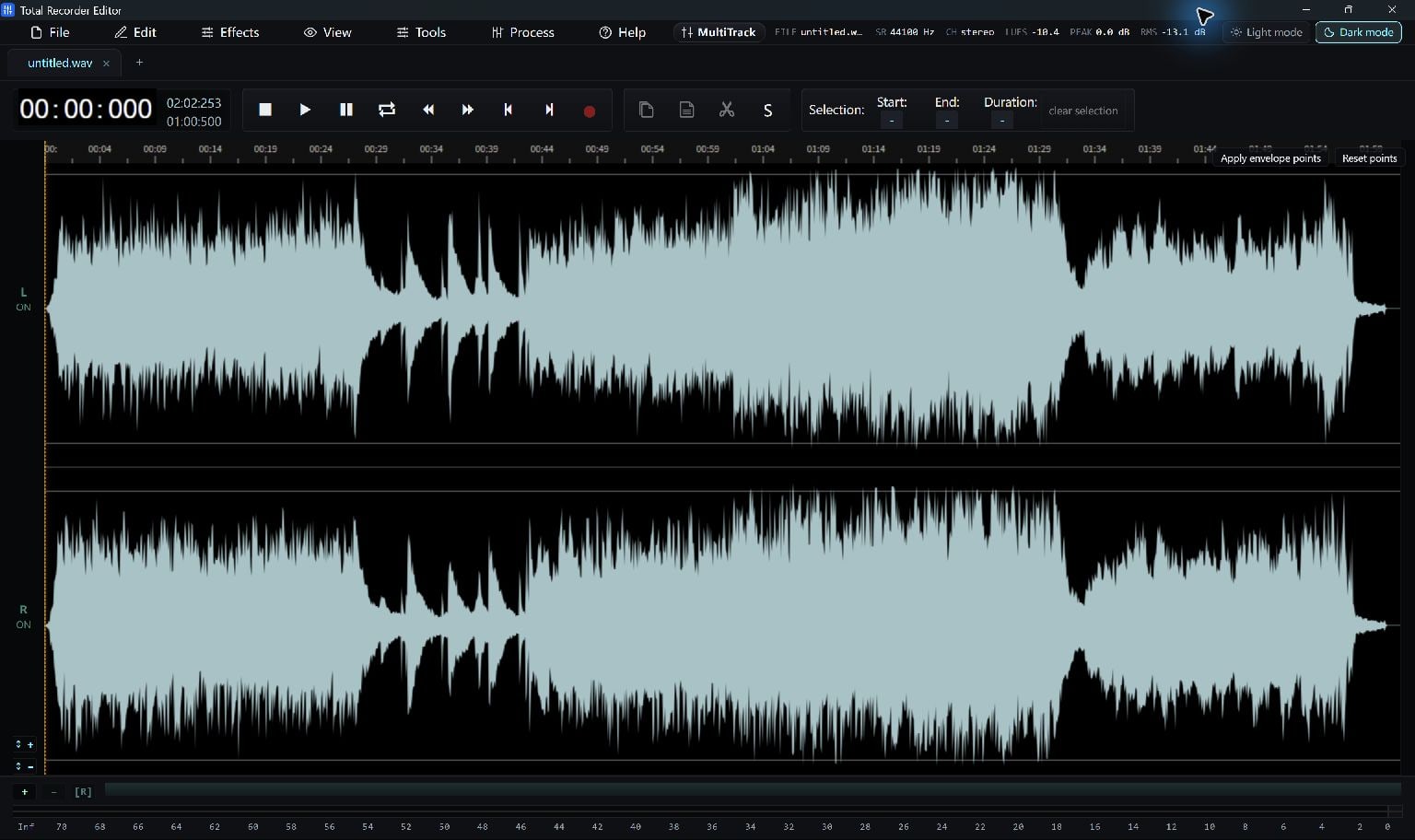
Find The Passage At Full View
Open the audio and listen for the passage you want to inspect. Use Reset Zoom to return to the complete timeline when the view is already enlarged.
Locate the passage before zooming in. The waveform helps you navigate, but a small shape may still contain a quiet word, breath or note tail.
Zoom In Along The Timeline
Use Zoom In Horiz (+) for a closer view of time around the waveform. Use Zoom Out Horiz (-) to see more surrounding audio.
At a close view, place or adjust the selection edges and check the selection readout. Listen around both boundaries before cutting, deleting or exporting a clip.
- Locate the passage during playback.
- Choose Zoom In Horiz (+) until the boundary is easier to place.
- Select the audio and listen across its start and end.
Return To The Bigger Picture
Choose Reset Zoom to see the complete recording again. Play from before the edit and continue past it so you can judge the result as part of the recording.
To work on a distant passage, return to the full view, locate the next section and zoom in again. This keeps you oriented without relying on an unfamiliar scrolling shortcut.
- Choose Reset Zoom.
- Locate the next passage in the complete timeline.
- Zoom into that passage only when you need a closer view.
Use Vertical Zoom For Inspection
Zoom In Vertically and Zoom Out Vertically change the displayed waveform height. They help you inspect a quiet-looking waveform without processing the audio.
Display zoom does not make the recording louder or quieter. Use a volume or gain tool when you intend to change the sound, then listen to the result.
Keep Going
More Audio Editor Guides · Explore Total Recorder Editor · Get Help