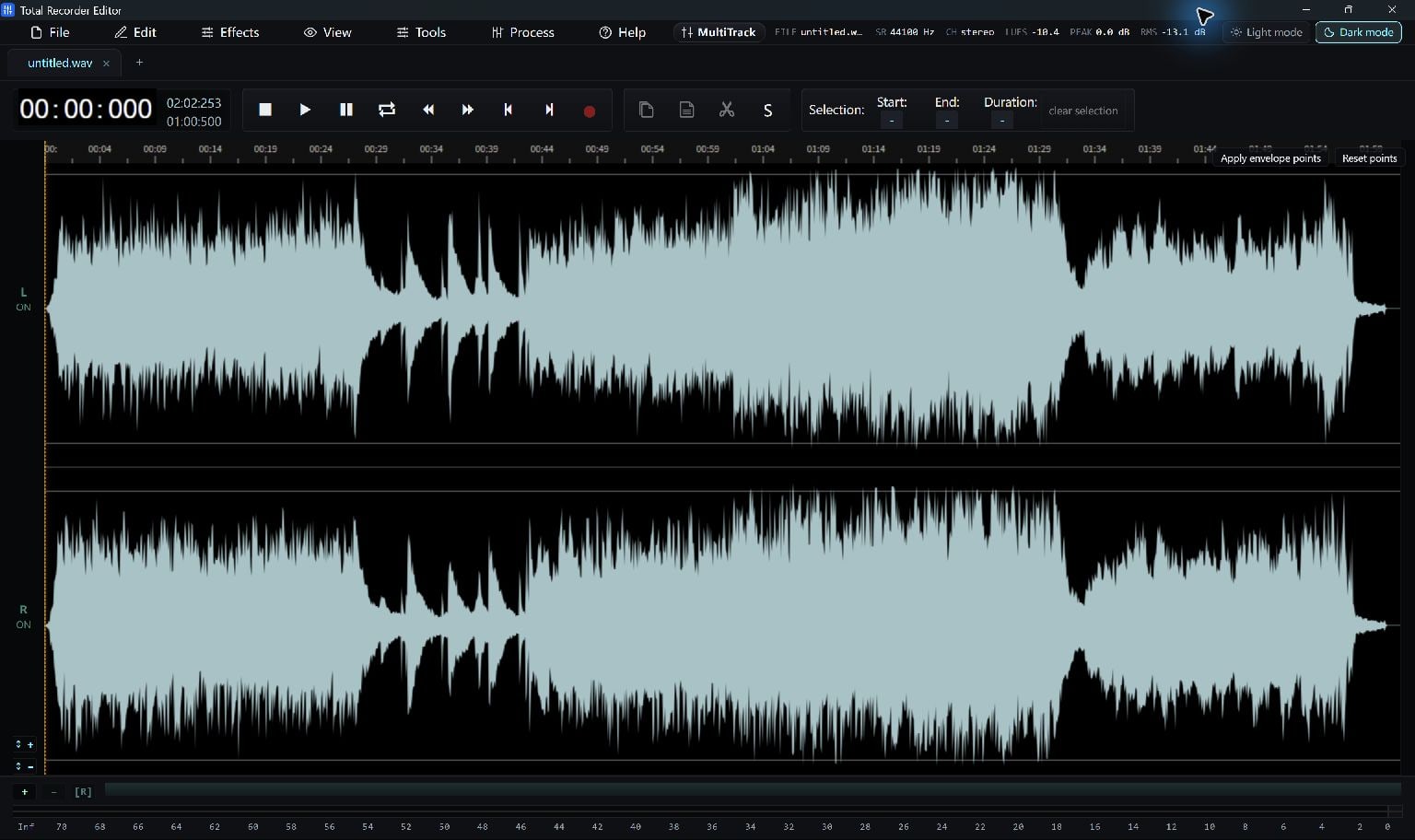
Open And Listen
Use File > Open… to choose a supported audio file. Listen before making changes and note which sections should stay.
The waveform shows level over time. Its overview helps you find a section; zoom in for a closer view of an edit boundary.
- Open your music or recording.
- Use playback to identify the beginning and end of the part you want.
- Save a project before making substantial edits.
Select The Right Region
Drag across the waveform to select a time range. Check the selection readout and listen around both edges before removing anything.
A short selection lets you process a problem area without changing the whole recording. Clear the selection when you want a whole-file operation.
Cut, Copy And Paste
Cut removes the selected audio and puts it on the editor clipboard. Copy keeps the original selection; Paste inserts the copied audio at the chosen position.
- Select the passage to move or duplicate.
- Choose Cut or Copy, then place the playhead at its destination.
- Choose Paste and listen across the join. Use Undo if the edit is not right.
Smooth The Finish
Apply a short fade where an abrupt start or ending clicks. Use volume, EQ or noise-reduction tools only where they help the recording.
Preview and compare changes at a comfortable playback level. Strong processing can change voices and music as well as background noise.
Navigate Longer Recordings
Use horizontal zoom to inspect an edit and Reset Zoom to see the complete timeline again. Markers can help you find positions you want to revisit.
Stereo and multitrack controls affect different things: check the selected audio and channels before editing, rather than assuming every visible track is included.
Save A Project And A Playable Copy
An editable project and an exported audio file serve different purposes. Keep the project to continue working; save MP3, WAV, FLAC or another supported format for listening and sharing.
Choose a new output name when you want to keep your source unchanged. Converting a low-quality source to WAV or FLAC does not restore detail that was already lost.
Keep Going
More Audio Editor Guides · Explore Total Recorder Editor · Get Help