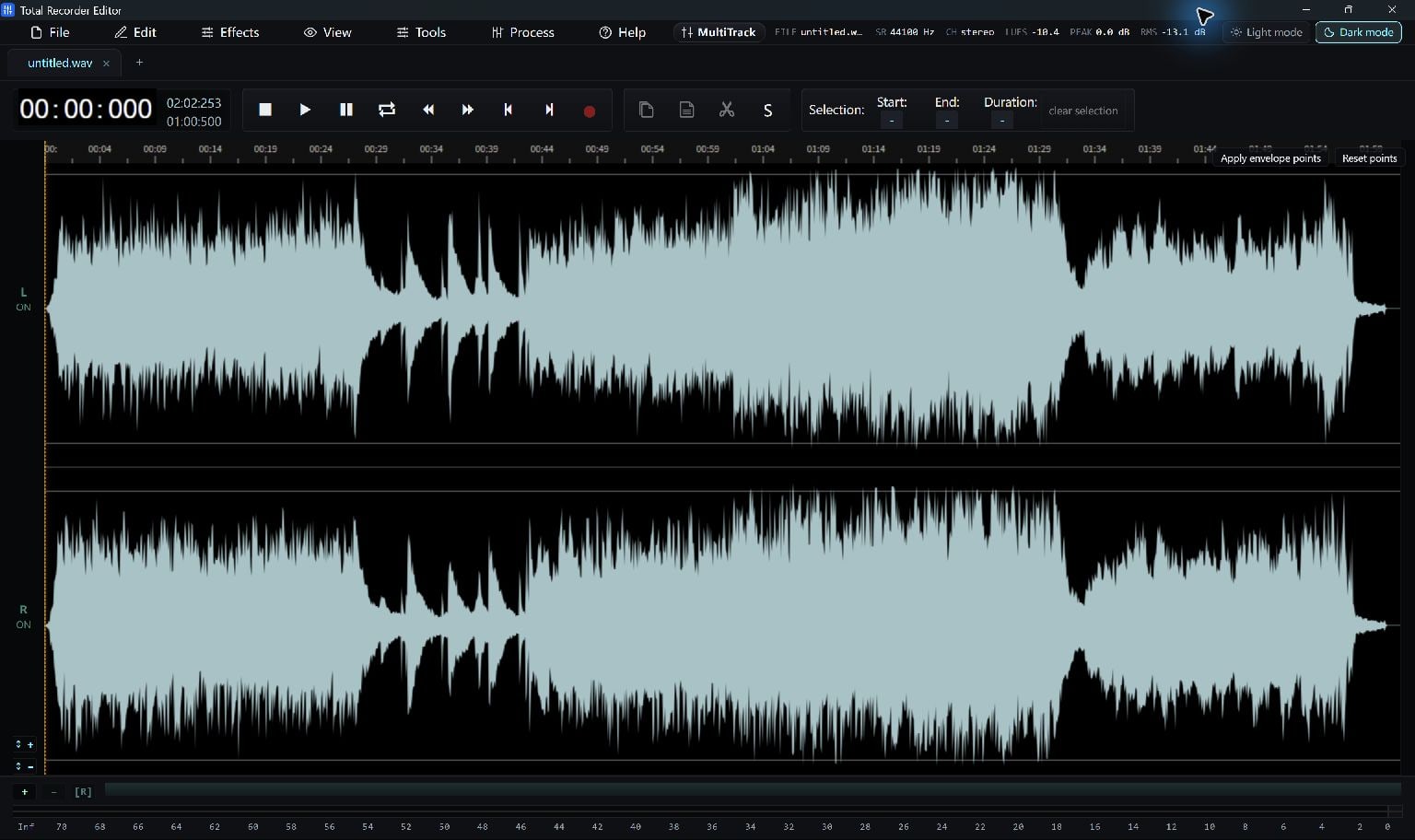
Choose The Sound To Capture
Open Tools > Record… in the English interface. Microphone records an input device; System audio captures the sound playing through a Windows output device.
For PC sound, start playback in the source application before testing the meter. Recording permission and device availability depend on your Windows setup.
- Choose Microphone or System audio.
- Select the matching device. To capture both, enable Also record the other source (mic + system).
- For two sources, choose a stereo mix or the split layout: microphone on the left, system on the right.
Make A Short Test
A brief test helps you catch the wrong device, silence or an overloaded signal before a longer recording.
- Select Start recording and speak or play the source.
- Check that the live meter moves.
- Choose Stop & open and listen to the captured audio.
Trim And Save
Remove unwanted silence at the beginning and end. Save an editable project if you want to continue working; export a playable copy for sharing.
- Select and remove unwanted parts of the waveform.
- Use Save As… to choose a new audio filename and format.
- Play the saved result and confirm that the beginning and end are complete.
If The Recording Is Silent
Confirm that the selected device is the one receiving or playing the sound. For system capture, start playback in the other application. For microphone capture, confirm that Windows allows desktop applications to access the microphone.
Try one source at a time before enabling the combined layout. Keep a successful test file so you can compare the device settings.
Keep Going
More Audio Editor Guides · Explore Total Recorder Editor · Get Help