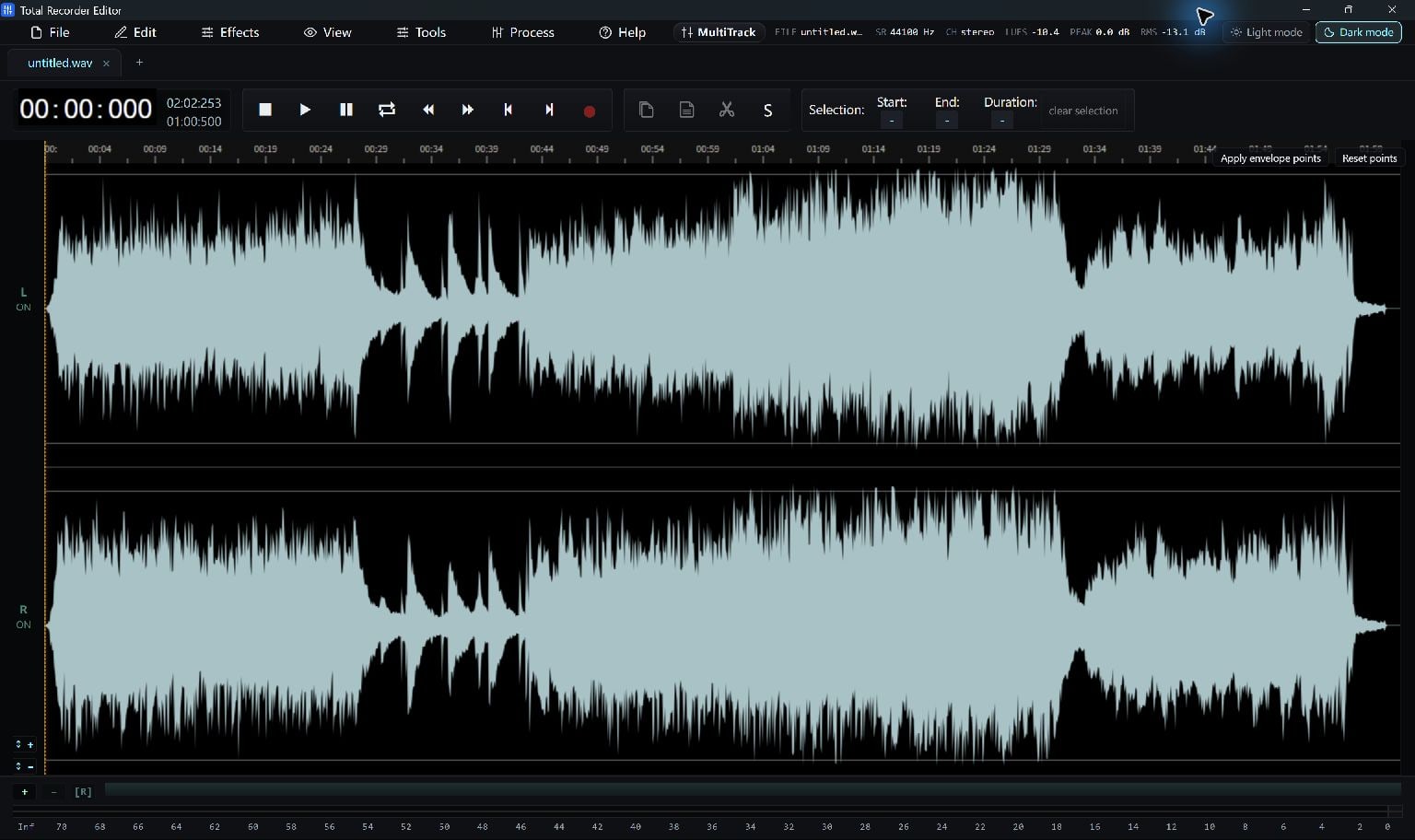
Open The MP3 And Find Your Clip
Open Total Recorder Editor and choose File > Open… to load your MP3. Play it first and note where your clip should begin and end. Keep a separate copy of the source before editing.
Zoom into the waveform when you need a closer view. A quiet-looking area may still contain breath, a soft word or the decay of music, so use playback to decide where to cut.
Remove The Unwanted Ends
Drag across the unwanted end of the waveform to select it. Listen around the boundary, then choose Edit > Delete to remove that selection. Next, select and delete the unwanted beginning. Removing the end first keeps the earlier timing easier to follow.
- Select the unwanted audio after your clip and choose Edit > Delete.
- Select the unwanted audio before your clip and choose Edit > Delete again.
- Play the shortened result and check that its first and last words or notes are complete.
Check The Beginning And Ending
If an edit cuts off a word or musical note, use Undo and adjust the selected region before deleting it again. A short fade can soften an abrupt edge, but preview it before keeping the change.
Check the complete clip, including the first and last seconds. The aim is a clean edit that keeps the content you intended.
Save A New MP3 Copy
Use Save As… and choose MP3 as the output format. Give the shortened recording a new name so you can retain the source file.
The editor decodes and exports audio; this workflow does not promise a lossless MP3 stream cut. Another MP3 encoding stage can change the audio, so keep the original if you may need to edit again. For ongoing work, save an editable project as well.
Keep Going
More Audio Editor Guides · Explore Total Recorder Editor · Get Help