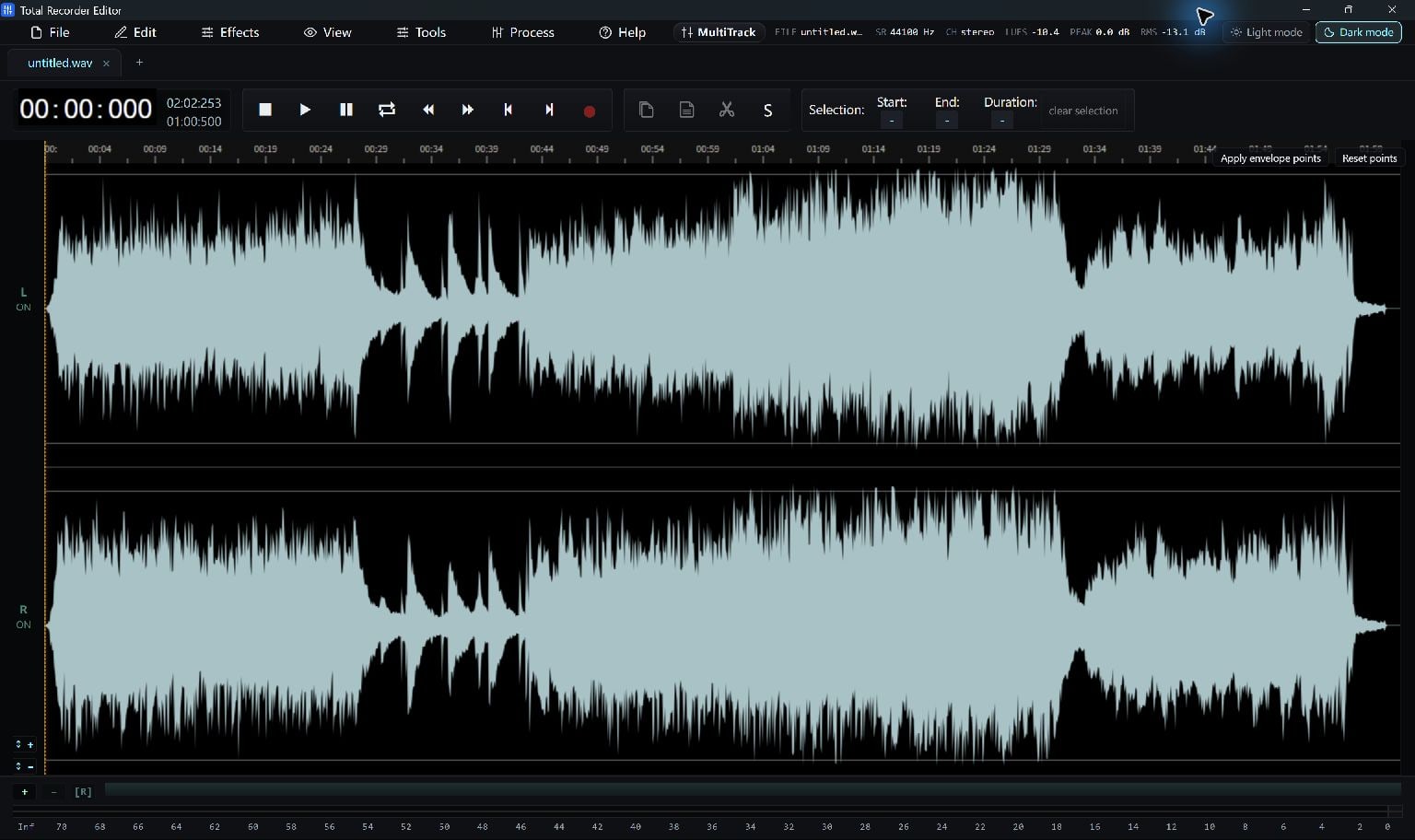
Listen To The Stereo Source
Open a stereo recording and check what is on the left and right. A channel may contain a different microphone or source, so decide which sound you need before changing the layout.
Open Edit > Channel Info/Flip. For a stereo file, the Channel Info dialog offers Make Mono with Left Channel or Right Channel, and a separate Flip Channels option.
Keep One Channel As Mono
Choose Make Mono, then select Left Channel or Right Channel and choose Apply Changes. The result keeps the chosen channel as a single-channel recording.
This operation selects one channel; it does not average the left and right together. Choose it when the sound you want is on that channel, and listen before saving.
- Open Edit > Channel Info/Flip.
- Enable Make Mono and select Left Channel or Right Channel.
- Choose Apply Changes, then play the result.
Swap Left And Right
If both channels should remain but are on the wrong sides, use Flip Channels instead of Make Mono, then choose Apply Changes.
Flipping exchanges left and right without turning the file into mono. Check the result with stereo playback so you can hear the change.
Save The Result As A New Copy
The channel-layout operation applies to the whole recording, rather than just a selected time range. Use Undo if the result is not what you intended.
Use Save As… to create a new audio file and retain your source. Save a project when you also want to continue editing later.
Keep Going
More Audio Editor Guides · Explore Total Recorder Editor · Get Help