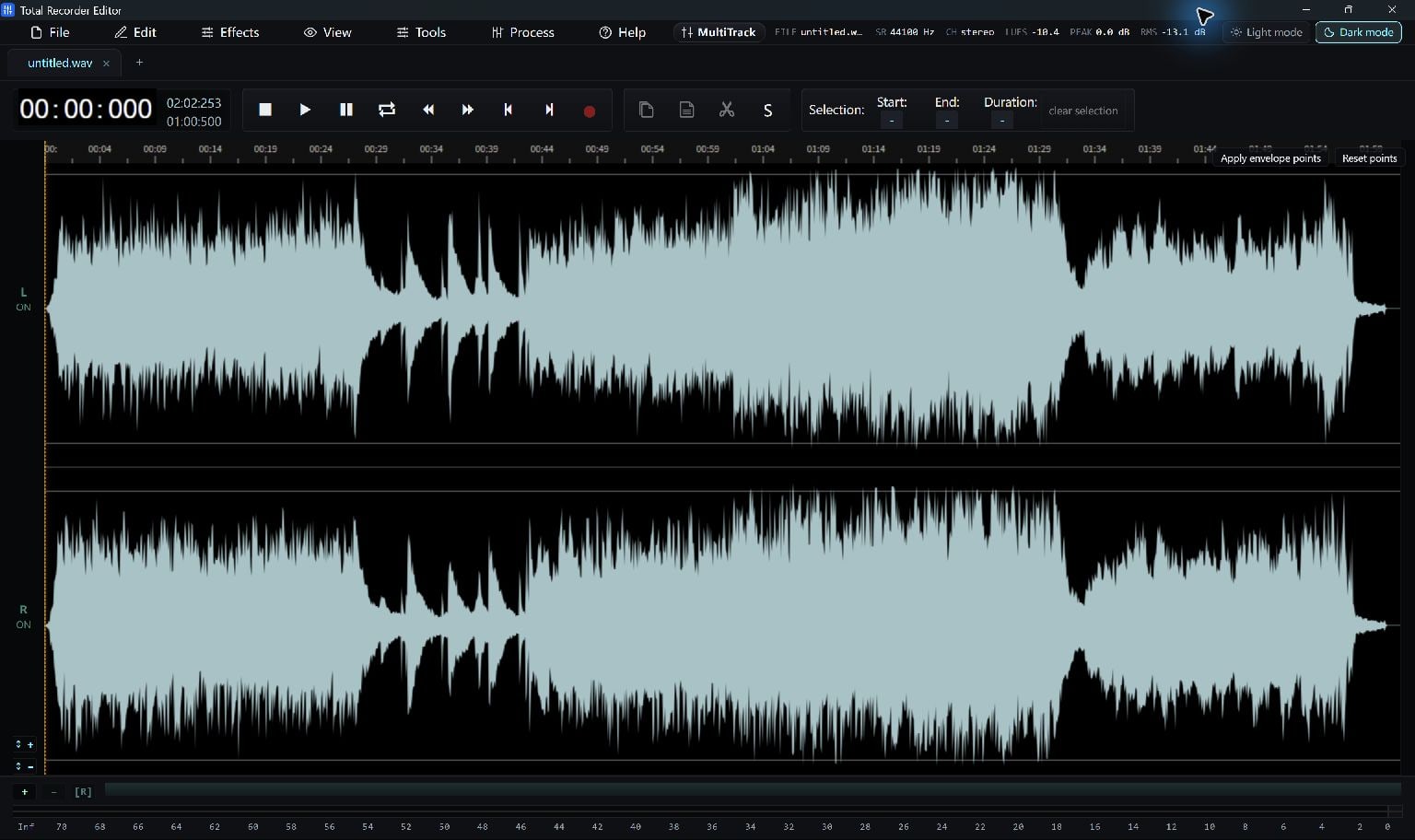
Keep A Project For Later Editing
Choose File > Save Project… to save a .wsmith project. Use File > Open Project… when you want to continue working in the editor.
Keep your source file as well. A saved project and a playable audio export serve different purposes; a listener usually needs an audio file such as MP3 or WAV.
- Open the recording and finish the current edit.
- Choose File > Save Project… and select a project filename.
- Keep the project for your next editing session.
Save A Playable Audio File
Choose File > Save As… to select an audio output format and a new filename. MP3 makes a compressed listening copy; WAV and FLAC are useful when your next application needs those formats.
Save As exports the current recording. Selecting a range on the waveform does not make Save As export only that range. Use the selection-export workflow below when you want a clip.
- Choose File > Save As….
- Select MP3, WAV, FLAC or another supported format.
- Give the output a different filename if you want to retain your source.
Export Only The Selected Clip
Drag across the waveform to select the part you want to keep. Open File > Convert / Export… and set Source to Selection only. Choose the format, then Export.
Choose Whole file in that dialog when you need the entire recording. The separate Export Selection… command creates a WAV slice; use Convert / Export… when the clip needs MP3 or another available delivery format.
- Select the clip and check its beginning and ending.
- Open Convert / Export…, choose Selection only and the required format.
- Choose Export and save the new audio copy.
Check The File You Will Share
Open the exported copy and play its beginning, ending and any important edit boundaries. Confirm that it contains the intended clip or whole recording.
A larger or lossless output cannot restore detail already missing from a compressed source. Keep the best source and the project so you can make another delivery copy later.
Keep Going
More Audio Editor Guides · Explore Total Recorder Editor · Get Help