Use The Actual M4A File
Start with a local M4A file that you can play. Changing its filename from .m4a to .mp3 does not convert its audio; use a converter to create a real MP3 output.
Copy the original recording from its device or storage location before beginning. Protected files, incomplete transfers and damaged media may not be readable. The workflow here uses supported, accessible M4A sources.
Select MP3 As The Output
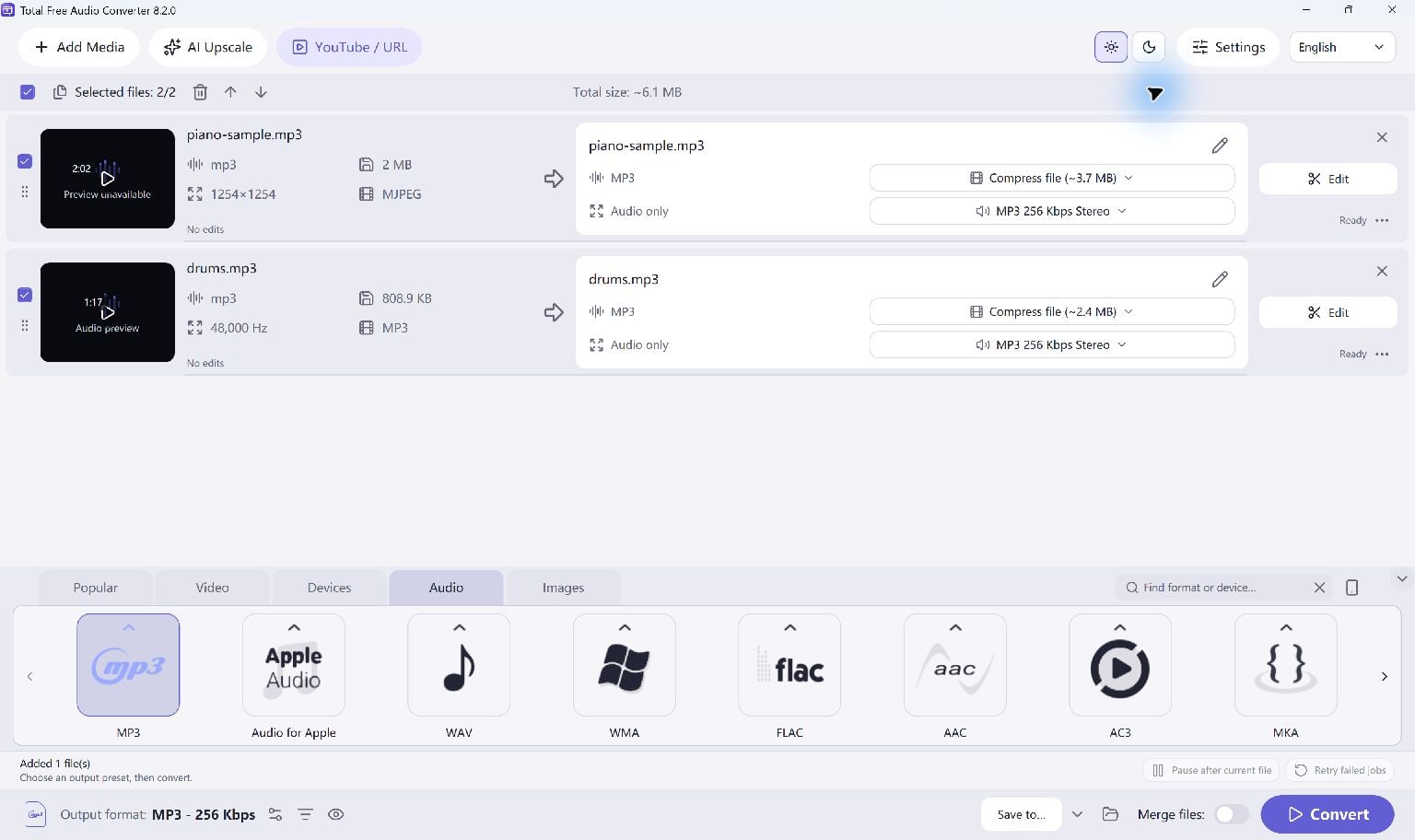
Open Total Free Audio Converter and add the M4A files. Use a single file for a first test, or add several recordings to a queue when you want the same output format.
- Add your local M4A files to the queue.
- Choose an MP3 preset in the output controls.
- Choose a destination folder and a suitable output quality.
Keep An Original Copy
MP3 adds a lossy encoding stage. Choosing a high bitrate does not restore detail missing from the source, so keep the original M4A if it is the only copy of an important recording.
If you only need part of a long recording, use the available trim controls before conversion and check that the selected range includes its complete beginning and ending.
Convert And Test The Result
Start Convert, then inspect the completed jobs and open the output folder. Play the MP3 files in the program or device that needs them. Check duration, clarity and the first and last seconds.
If conversion fails, test the M4A in a media player and review the job error. A protected or damaged source may require an accessible copy from its original service or device.
Keep Going
More Audio Converter Guides · Explore Total Free Audio Converter · Get Help