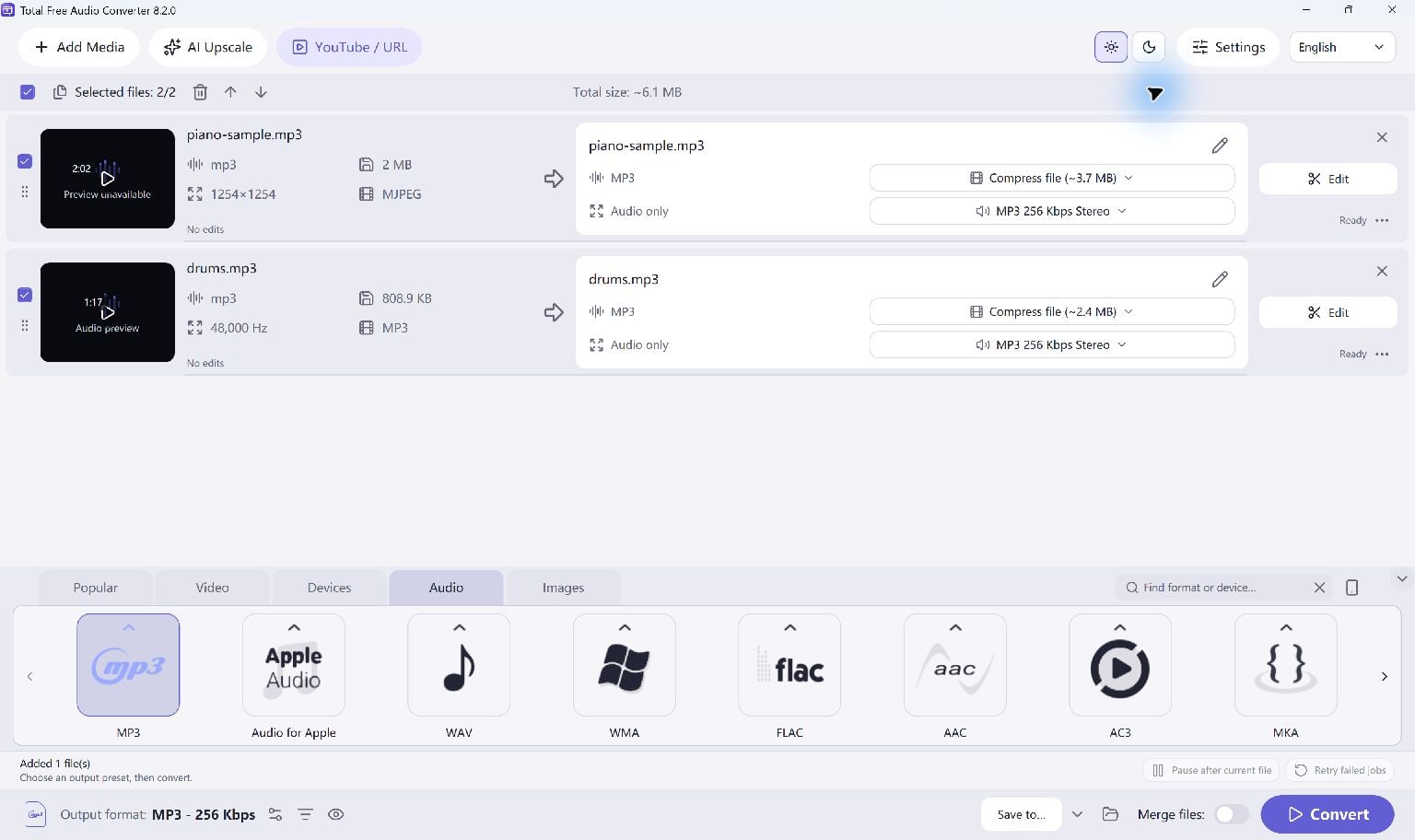
When An MP3 Copy Helps
FLAC stores audio with lossless compression. MP3 uses lossy compression and is useful when you need a more widely supported listening copy or a smaller file. Converting FLAC to MP3 discards some audio information; a higher output setting cannot make the source better.
If your player already accepts FLAC and storage is not an issue, you may prefer to use the original. Keep those source tracks so you can choose another output later.
Add Your FLAC Tracks
Open Total Free Audio Converter and add your local FLAC files. You can add several tracks to one queue. Check that the intended files are selected and that the source files play correctly.
- Add one FLAC file or a group of tracks.
- Select an MP3 output preset.
- Choose a separate destination folder for the MP3 copies.
Choose The Quality You Need
Start with an MP3 preset, then adjust its audio quality only if your player or project has a specific requirement. Output quality affects file size as well as the encoding result.
For an initial check, convert one representative track and listen on the device you plan to use. Avoid repeatedly converting the same MP3 output: return to the FLAC source when changing settings.
Convert The Queue And Check A Track
Start Convert and wait for each selected job to finish. Open the destination folder and play a completed MP3 from beginning to end. Check the filename and duration before removing any temporary copies.
A file extension alone does not guarantee readable media. If a track fails, confirm that it plays correctly and review the job error before trying again.
Keep Going
More Audio Converter Guides · Explore Total Free Audio Converter · Get Help