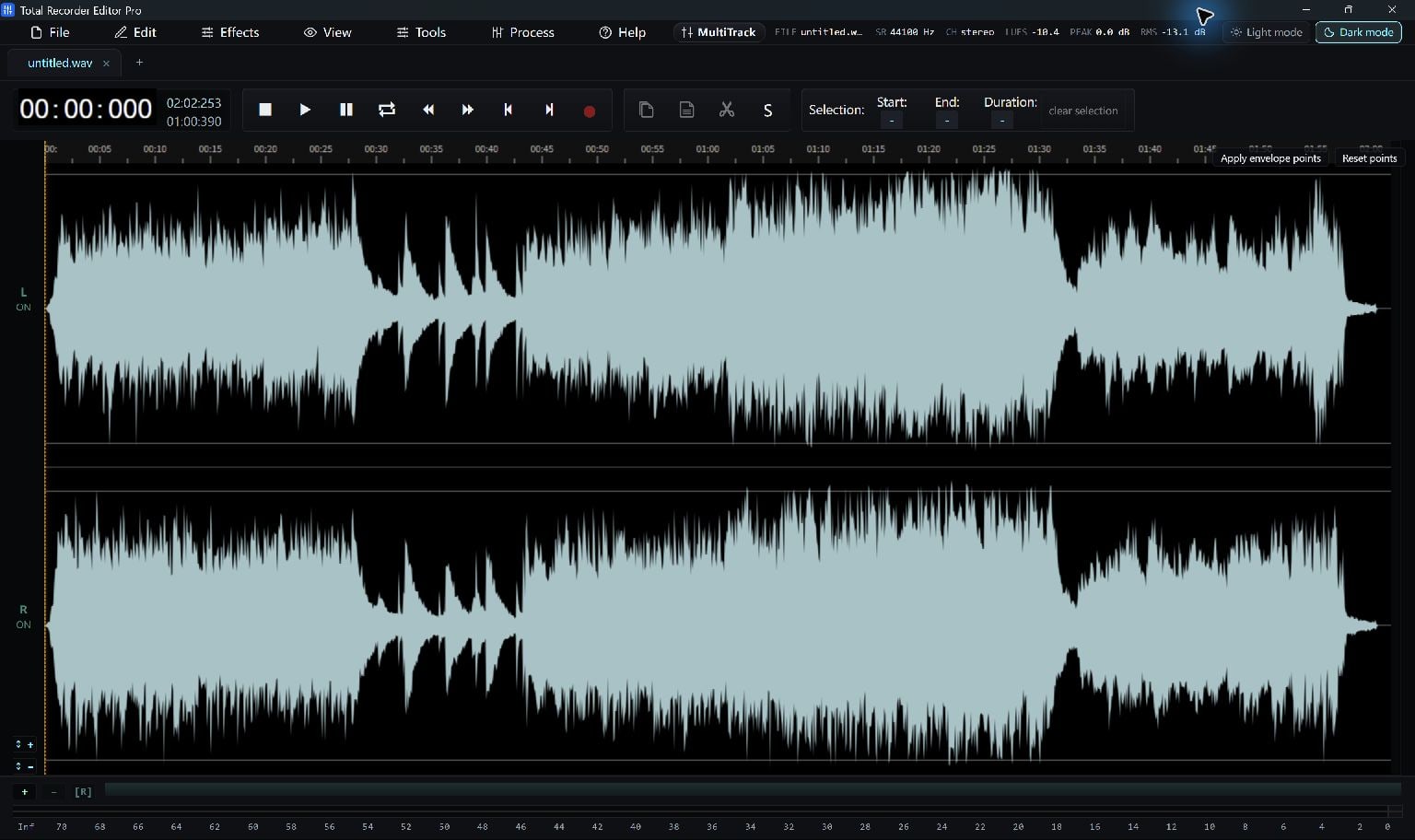
Extract the disc tracks with a CD-ripping tool, then use Total Recorder Editor Pro to edit or convert the saved files.
Ripping And Conversion Are Different
Ripping reads the tracks on an audio CD. Converting changes an audio file that already exists on your PC.
Use a separate CD-ripping application to extract the disc's tracks. After extraction, open the saved audio files in Total Recorder Editor Pro.
Keep A Good Source Copy
When your separate ripping tool offers it, keep WAV or FLAC originals for editing. Store the copies in a folder you can identify and back up.
Do not assume that converting an MP3 back to WAV restores details discarded during compression.
- Finish the disc extraction in your chosen ripping tool.
- Locate and play the resulting audio files.
- Keep the originals, then open working copies in Total Recorder Editor Pro.
Edit Or Convert The Local Tracks
Trim silence, adjust levels or add fades in the editor. Save a project for later changes and export a listening copy.
For a group of existing tracks that only need a new format, use batch audio conversion rather than recording them again.
Keep Going
More Recorder Editor Pro Guides · Explore Total Recorder Editor Pro · Get Help