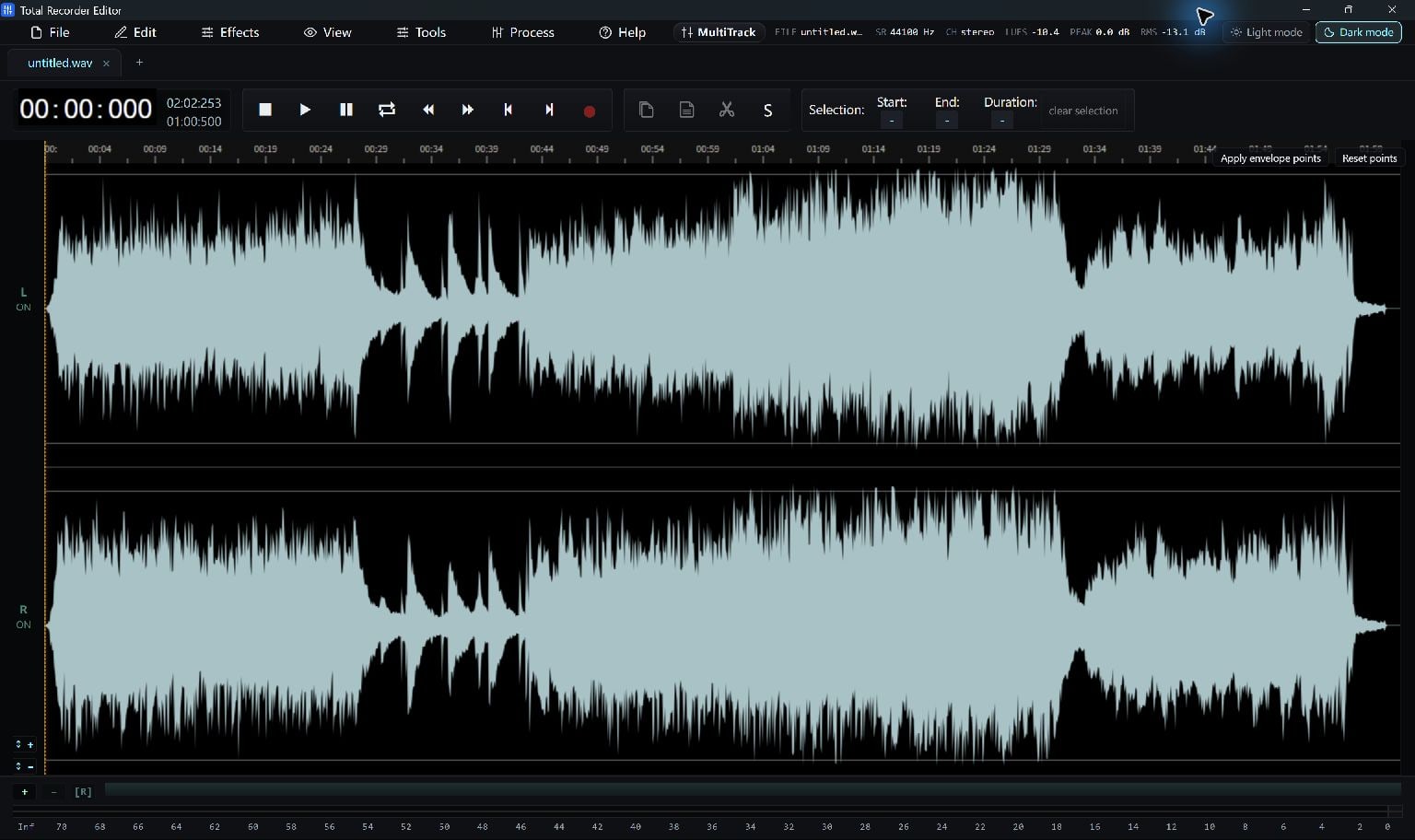
Copy the CD tracks to local audio files with a CD-ripping tool, then open those files here to edit and export.
Start With Local Audio Files
Use a separate CD-ripping tool to copy tracks from an audio CD to your PC, then open the saved audio files in Total Recorder Editor.
An audio CD stores tracks differently from a disc containing ordinary MP3 or WAV files. To edit an audio-CD track, first save it as a local audio file using your CD-ripping tool.
Prepare A Local Track
If you already copied a track using a separate CD-ripping application, locate its WAV, FLAC, MP3 or other supported output. For a disc containing ordinary audio files, copy those files to a working folder first.
Keep the original track as a backup and work from a copy you are allowed to use.
- Locate the copied audio file on your PC.
- Open it in Total Recorder Editor with File > Open….
- Play the beginning and end to confirm the file is complete.
Edit And Save
Trim unwanted silence, adjust levels or apply a gentle fade if needed. Use Save As… for a playable copy or save an editable project for later.
If you still need to extract tracks from an audio CD, use a separate tool that documents audio-CD ripping, then return here with its output files.
Keep Going
More Audio Editor Guides · Explore Total Recorder Editor · Get Help