Check That The Video Has Sound
Play the local MP4 and confirm that it contains the soundtrack you want. Total Free Audio Converter accepts supported video sources and can create a separate audio output. An MP4 without a usable audio track cannot supply sound.
Use a video you own or have permission to work with. Protected, damaged or unsupported source media may fail even when its extension is .mp4.
Choose An Audio Output
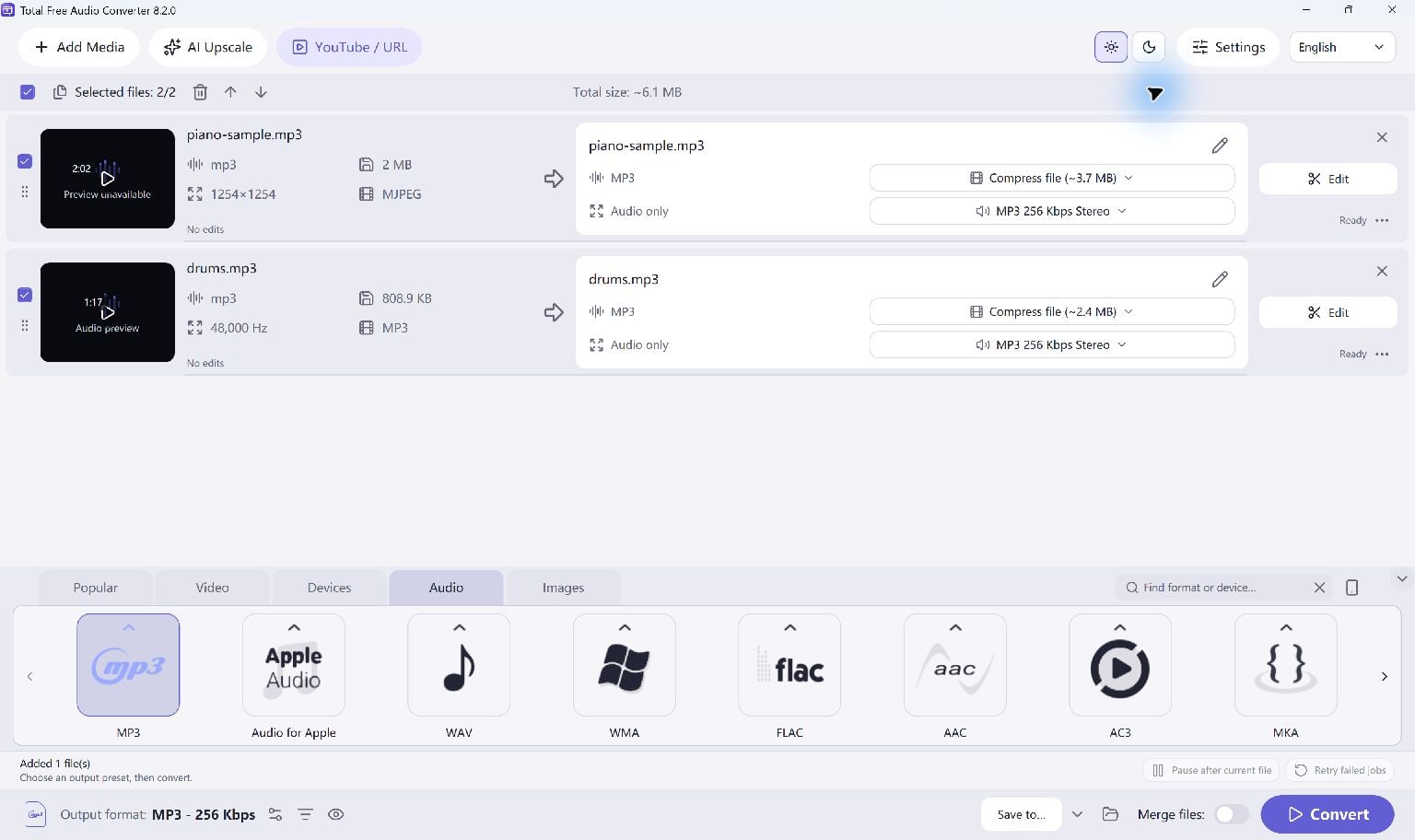
Add the video to Total Free Audio Converter and choose MP3 in the output presets. You are making an audio file: the MP3 will not contain the video picture.
- Add the local MP4 video.
- Choose an MP3 audio preset and an output folder.
- If you only need a segment, set the desired keep range and check its boundaries.
Convert And Listen
Start Convert and wait for the selected job to finish. Open the output folder and play the MP3. Listen to the start, the end and any trimmed boundaries to confirm you have the expected soundtrack.
For several videos, add the supported files to a queue and check each job result. Keep the source videos until you have verified the audio copies.
Choose MP3 Or An Editing Format
MP3 is a compressed listening format and introduces a lossy encoding stage. A higher bitrate cannot restore audio that the source video never contained.
If your next step is more audio editing, you can choose a supported WAV or FLAC output instead. Those formats do not restore lost source quality, but may suit the next program in your workflow. To change the video format while keeping a picture, use Total Free Video Converter.
Keep Going
More Audio Converter Guides · Explore Total Free Audio Converter · Get Help