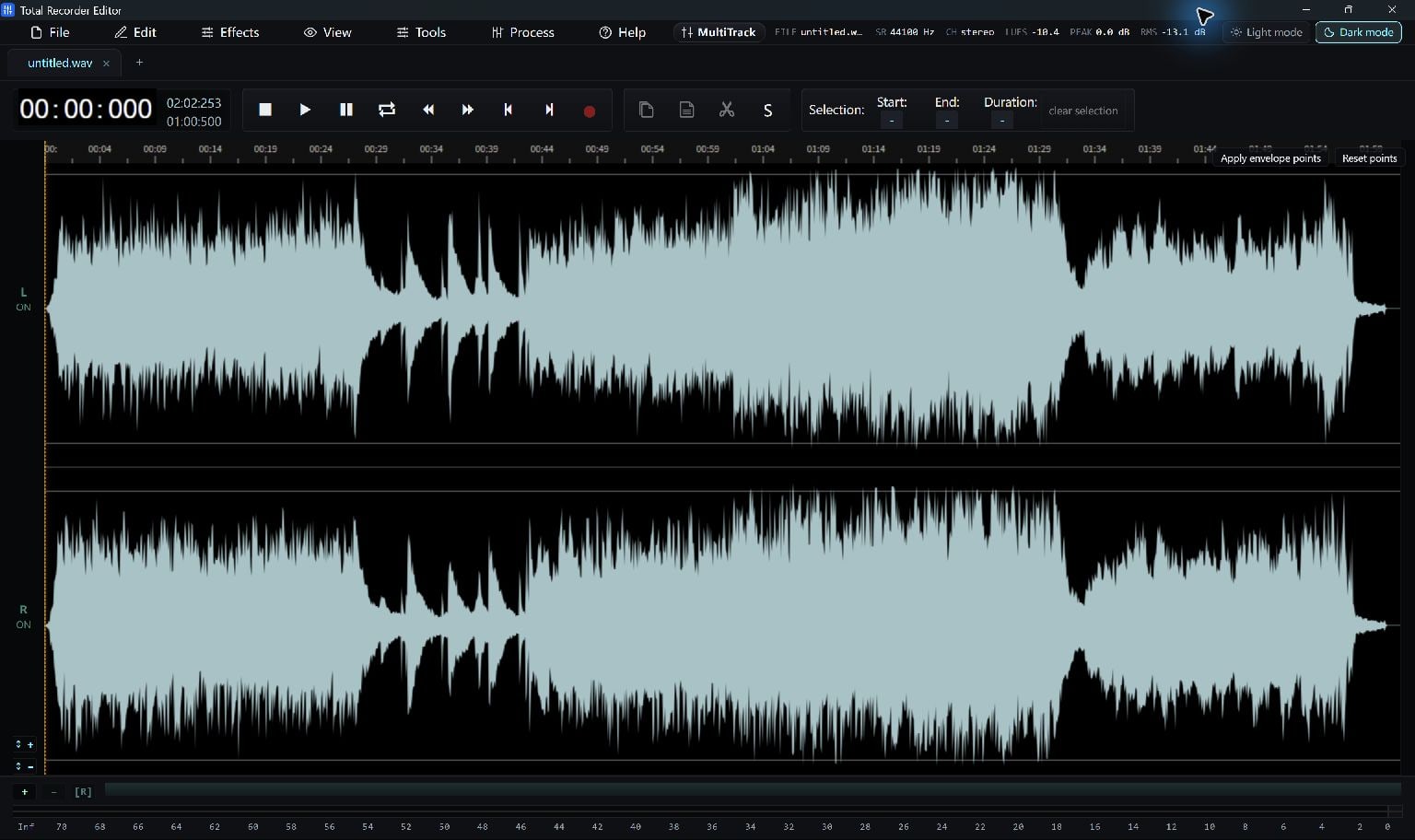
Record manually here, or capture with a separate scheduled recorder and open its saved audio for editing.
Choose How The Session Starts
If you need an automatic start at a set time, use a recorder with a scheduling feature. Open its saved audio in Total Recorder Editor for trimming and cleanup.
To record directly in Total Recorder Editor, start and stop capture manually with the recording controls.
Prepare A Manual Recording
Choose the microphone or system playback device and make a short test. For system audio, confirm that the intended application is playing through the selected output.
Check the destination and available disk space before a long capture. Keep the source application and recorder available for the session.
- Open Tools > Record… and choose the source.
- Make and play back a short test.
- Start the real recording manually and confirm that the meter moves.
Stop And Finish The Audio
Choose Stop & open when the session ends. Listen to the start and end, remove unwanted silence, and save a playable copy.
If a future automatic start is essential, use a recording application that explicitly documents scheduling, then import its supported audio file for editing here.
Keep Going
More Audio Editor Guides · Explore Total Recorder Editor · Get Help