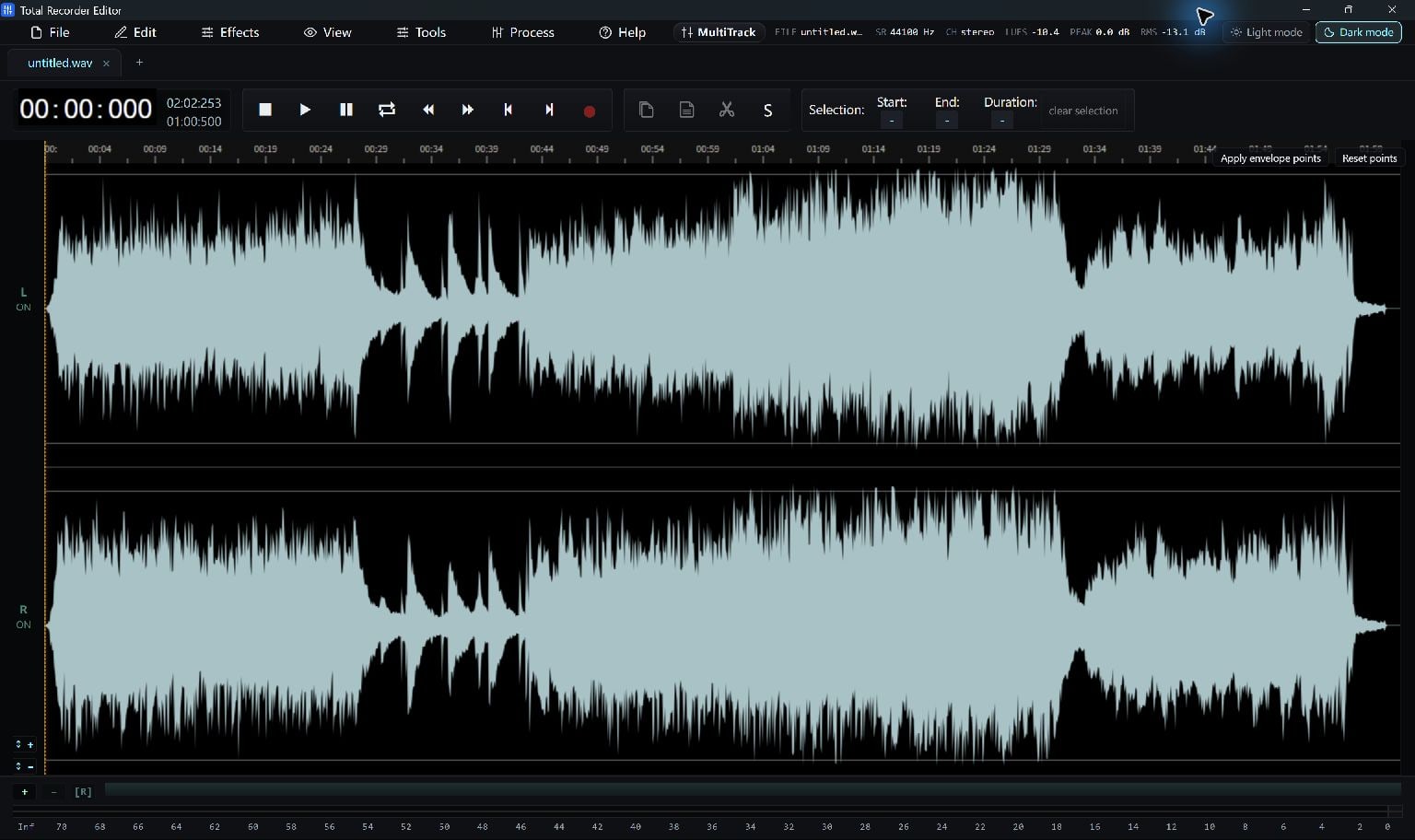
Choose Sequential Joining Or Mixing
Joining places clips one after another. Mixing layers one sound over another. Choose the operation that matches your goal.
For a few edited clips, the audio editor's Insert File… tool can place another file at the playhead. Total Free Audio Converter also provides queue-order joining for supported files.
Insert At The Right Position
Open the first clip, then place the playhead where the next clip should begin. For an end-to-end join, move to the end of the existing audio.
Use File > Insert File… and select the next clip. Choose insertion rather than mixing when the clips should play in sequence.
- Open the first clip.
- Place the playhead at the insertion point.
- Insert the next file and repeat in your intended order.
Listen To The Boundaries
Listen before and after each join. Remove unwanted gaps, avoid cutting off consonants or note tails, and use a short crossfade where it improves the transition.
If the goal is simultaneous background music and speech, use the mixing option instead and check the combined level.
Save One Finished File
Keep a project if you may rearrange the clips later, then export the joined result.
Do not call an ordinary decoded-and-exported join lossless stream copying. The final quality depends on the source and chosen output.
Keep Going
More Audio Editor Guides · Explore Total Recorder Editor · Get Help